Adding and managing hosts
Enroll Windows and Linux targets, validate connectivity, tag assets, and import host lists.
Host Inventory is the authoritative list of systems available to an investigation.
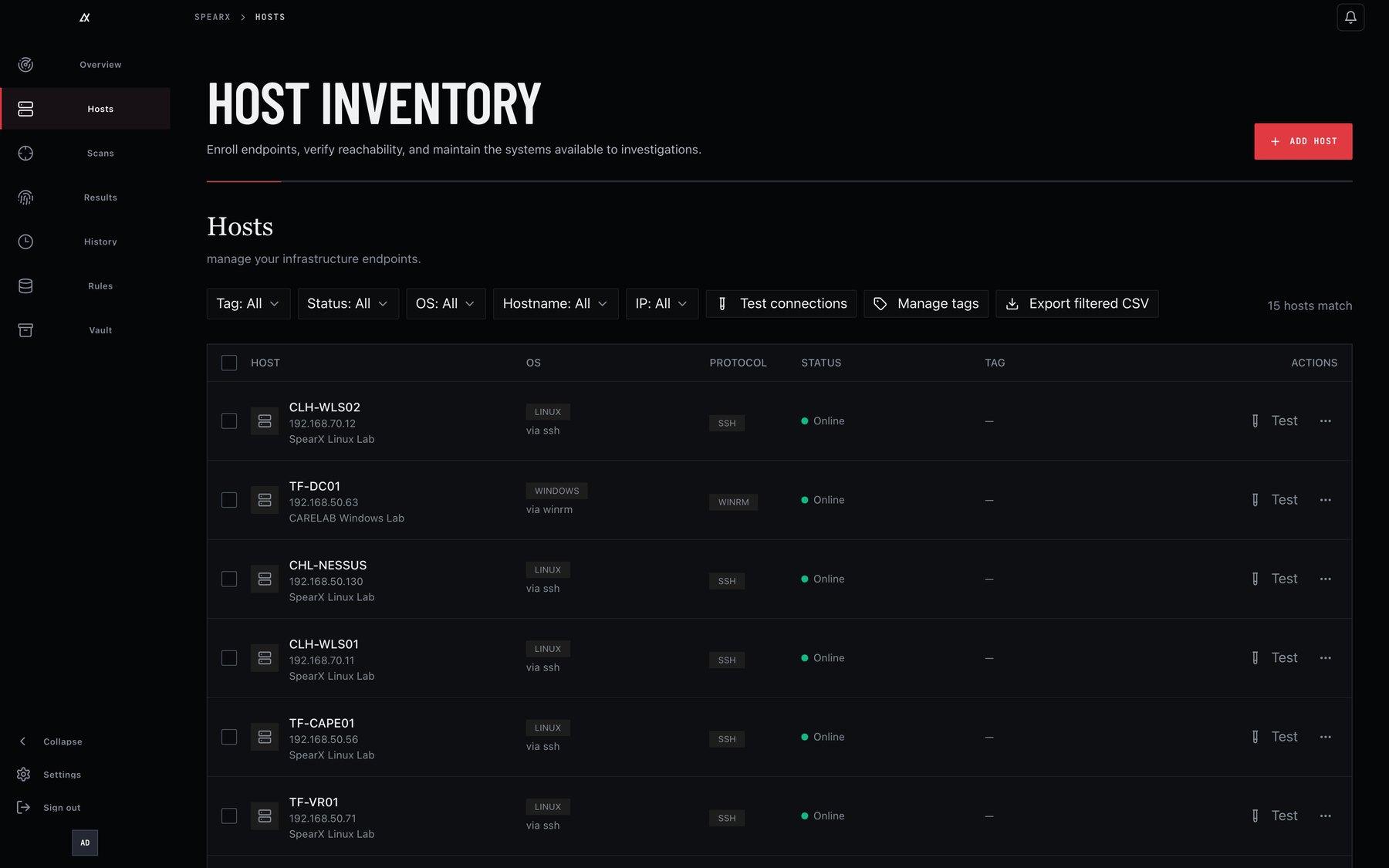
Add targets
Select Hosts > Add Host, then choose one of three methods:
- Single Host - enter one hostname or IP address, OS, protocol, port, and credential profile.
- Bulk Import - paste or upload a host list for controlled onboarding.
- Subnet - discover reachable hosts within an authorized network range.
If a master credential profile exists for the target platform, SpearX can apply it to hosts that do not have an explicit profile.
Validate before scanning
- Filter the inventory to the intended target.
- Select Test for one host or Test connections for the selected set.
- Confirm the host reports Online.
- Investigate authentication, routing, firewall, name resolution, or protocol failures before scanning.
Organize and export
Use tags for sites, business units, environments, or investigation scopes. Filters are available for tag, status, OS, hostname, and IP/subnet. Export filtered CSV exports the current inventory view.
Subnet discovery and bulk enrollment must stay within the network scope approved by the system owner.
Example
For a Linux test server, create an SSH profile, enroll the hostname with Linux/SSH selected, attach a lab tag, test connectivity, and then use the lab tag when configuring the first scan.