Operate SpearX
Running scans
Configure YARA file scans and Sigma event-log hunts with safe execution limits.
Go to Scans to define the target set, detection engine, rules, paths, and execution boundaries.
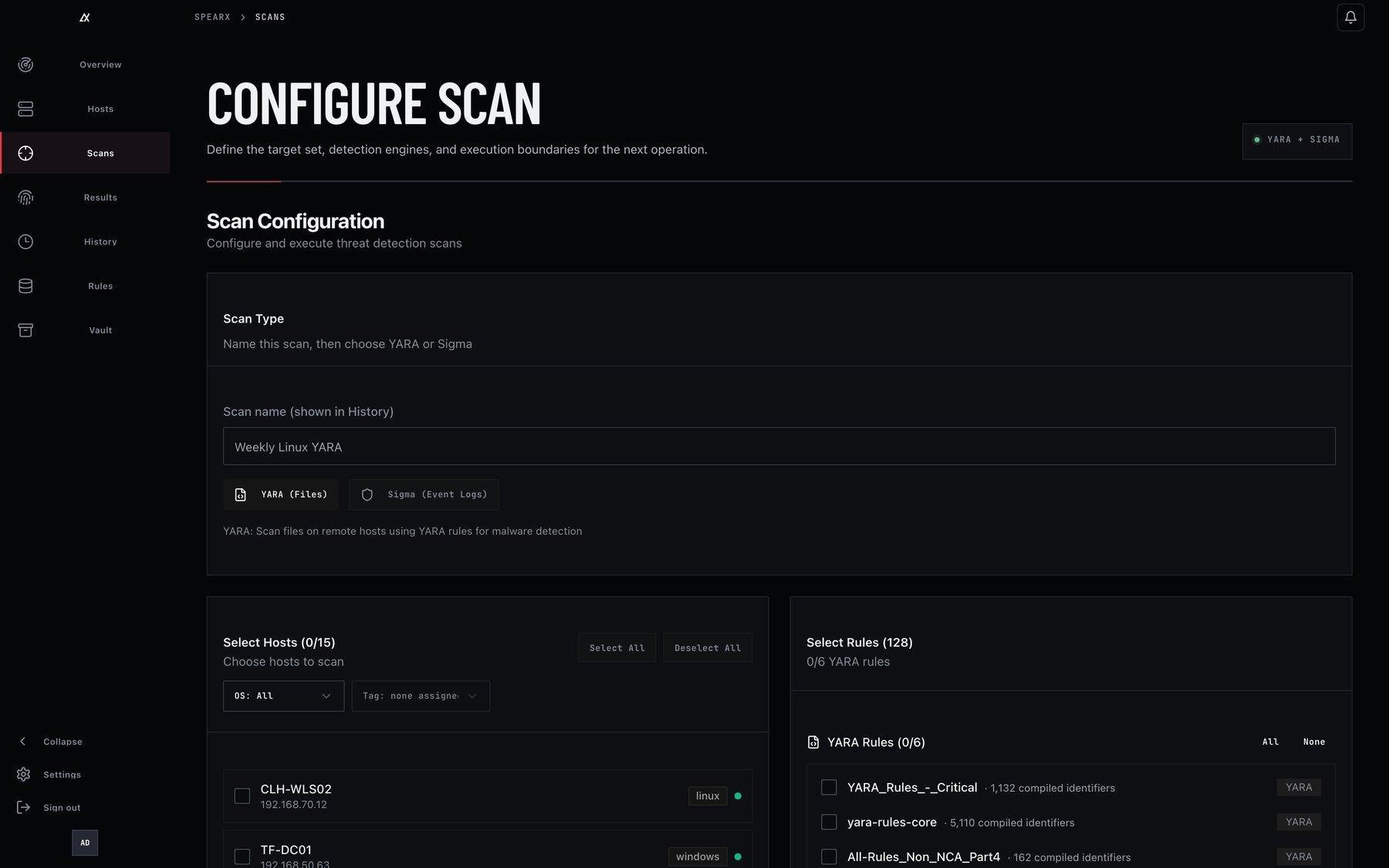
Configure a YARA scan
- Enter a scan name that describes the purpose and scope.
- Select YARA (Files).
- Select individual hosts, all hosts, an OS, or a tag.
- Select reviewed YARA packs.
- Leave the path empty to use the displayed OS defaults, or set Windows and Linux paths separately for a mixed fleet.
- Review the performance controls and select Start Scan.
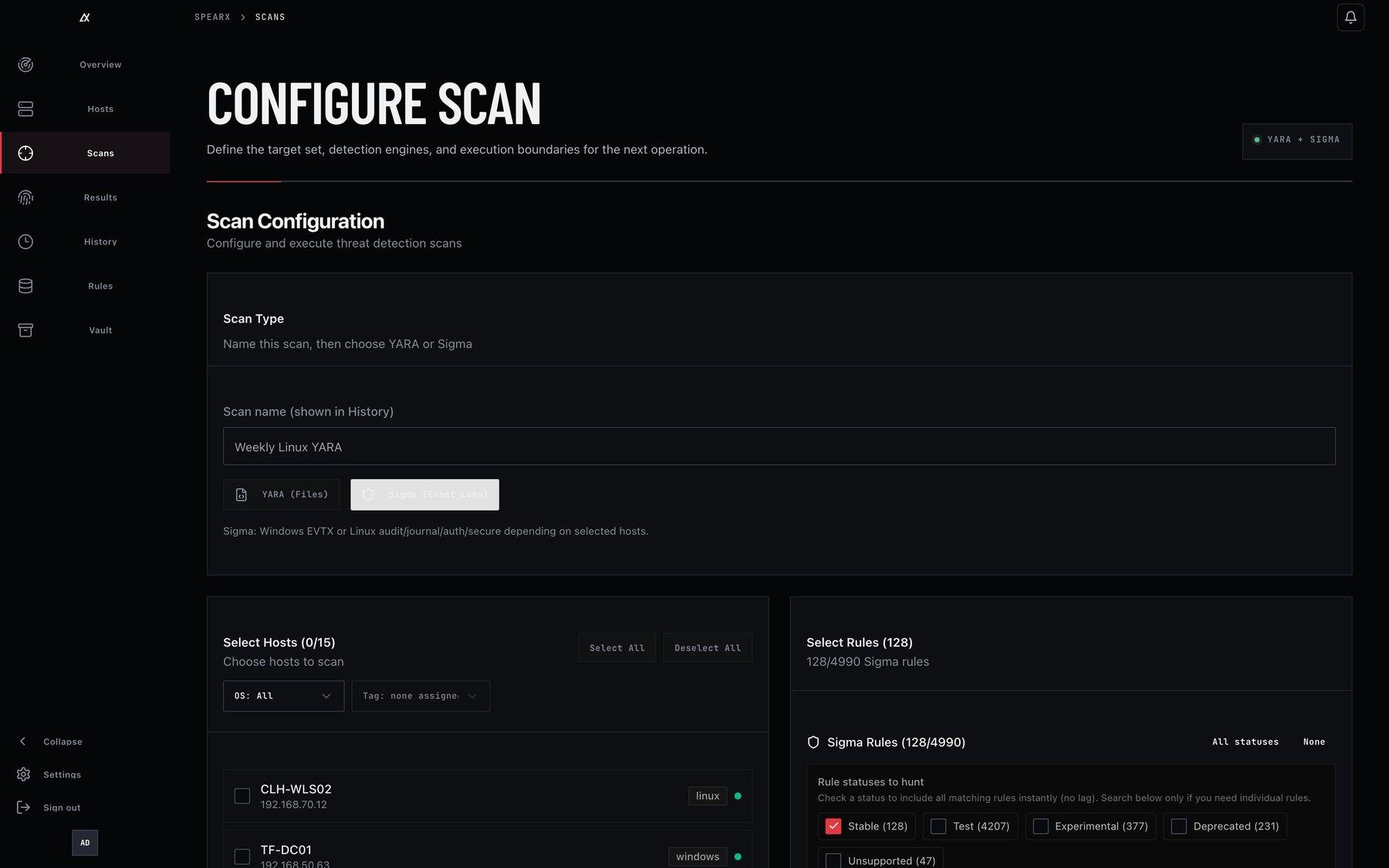
Configure a Sigma hunt
Select Sigma (Event Logs). Choose rules by state or individually. The verified interface supports Windows EVTX and Linux audit, journal, authentication, syslog/messages, cron, and kernel sources, including rotations.
Performance and safety controls
| Control | Verified behavior |
|---|---|
| Limit scanner CPU | Percentage cap; the interface shows 50% as the production default |
| Threads | 0 is automatic; the interface recommends 2-4 only for busy domain controllers |
| Timeout | 1-999 minutes; 300 minutes is displayed as the default |
| Intense mode | Raises the YARA per-file cap from 10 MiB to 200 MiB unless overridden |
| Archives | ZIP, TAR, 7Z, CAB, and GZ with depth, member, and timeout controls |
| Production Safe Mode | Applies conservative execution controls; read the current UI description before use |
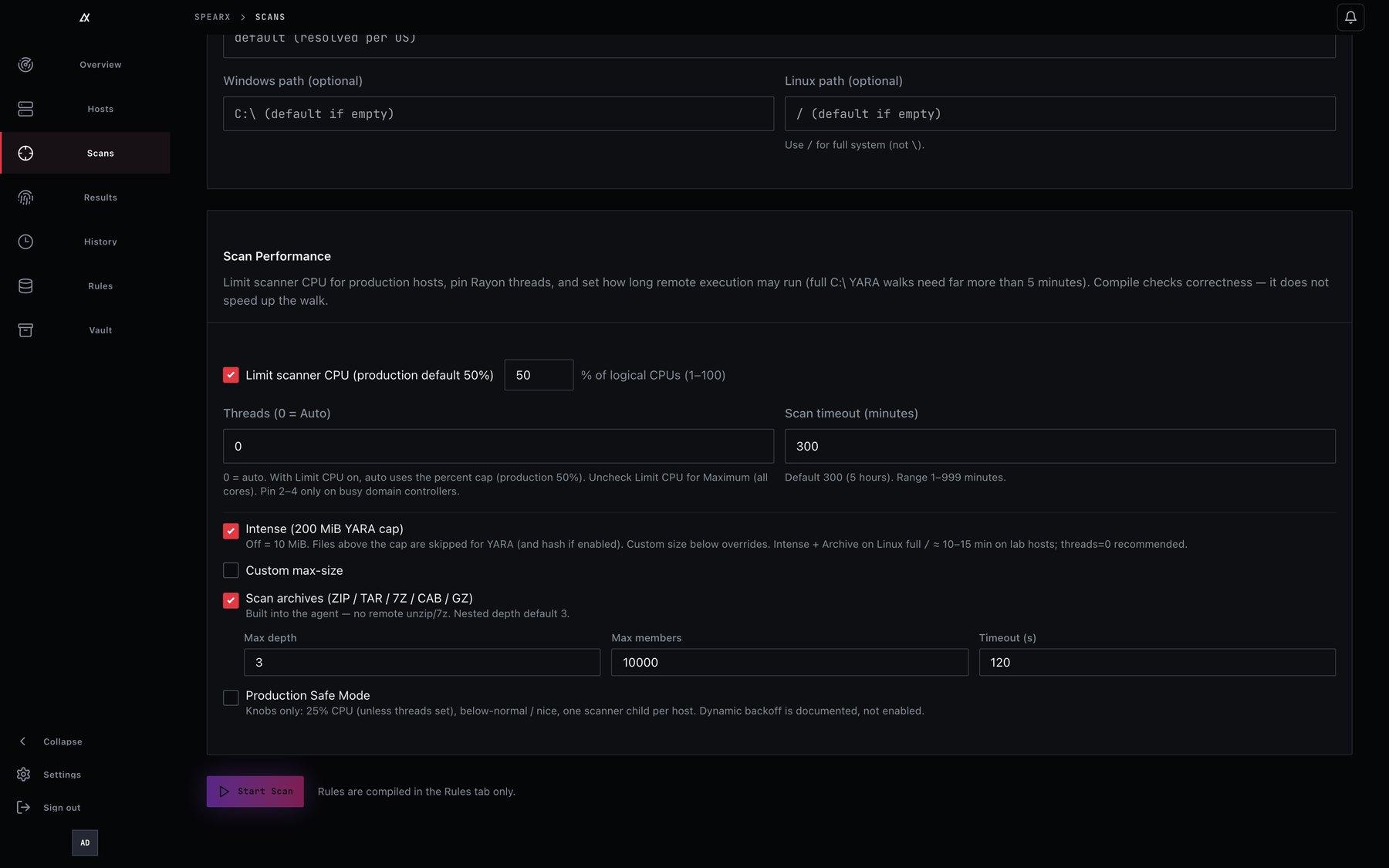
Start with one non-production host and a narrow path. Archive inspection and full-root walks can increase runtime, CPU, I/O, result volume, and storage consumption.
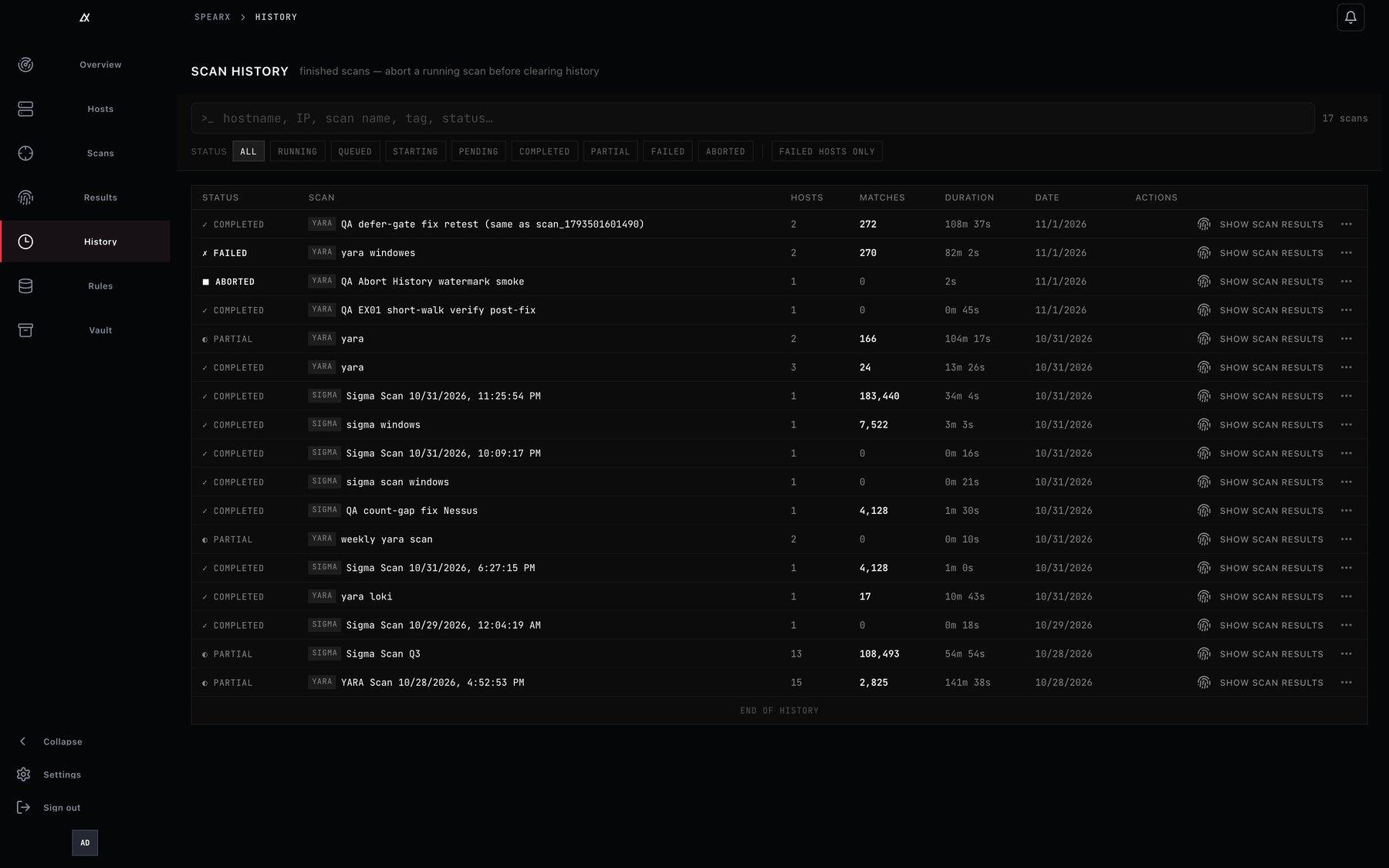
Track progress
Open History. Filter by Running, Queued, Starting, Pending, Completed, Partial, Failed, or Aborted. You can rename a scan, abort an active scan, and open its scoped results.